Manual
In the manual
How DARA works
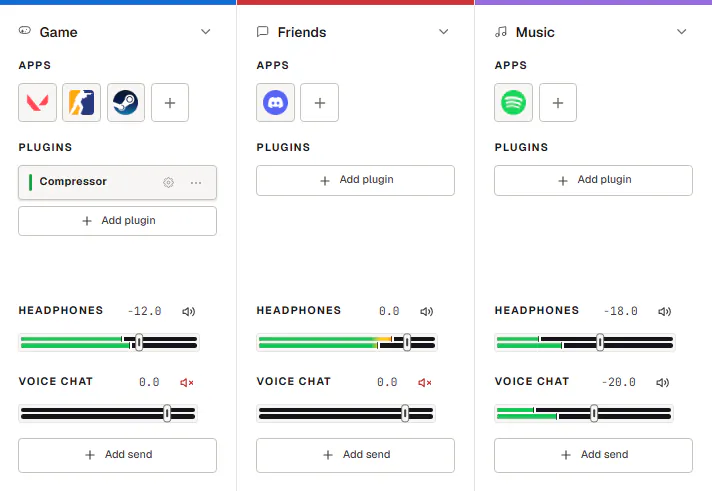
DARA puts the apps on your PC on channels. Each channel has its own effects, and it sends to one or more mixes at its own level.
A mix is one place your sound goes, like your headphones, a voice chat or a stream. So the game can be loud in your headphones and quiet for your friends.
Install
- Get the installer from the download page.
- Run it. Windows asks for admin rights once, for the audio driver.
- Open DARA. Leave Launch DARA ticked on the last page, or open DARA from the Start menu.
- Activate it. DARA asks for your key before anything else. Paste the key from your purchase email and choose Activate DARA.
You need Windows 10 (2004 or later) or Windows 11 on an x64 PC. Arm PCs aren’t supported.
First launch
Once DARA is activated, it asks what you use this PC for. Then it looks at your audio devices and the apps playing right now, and builds channels to match.
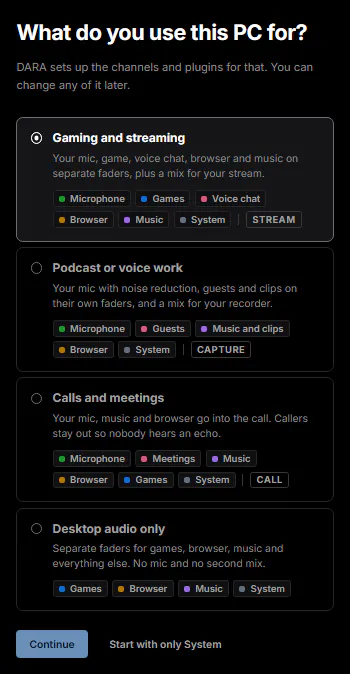
- Pick a setup. Choose the one closest to how you use this PC, then click Continue. To build everything yourself, choose Start with only System instead.
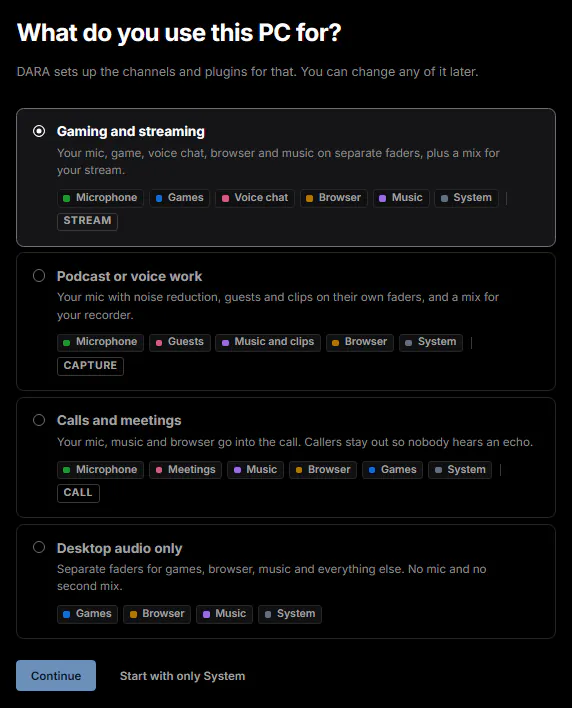


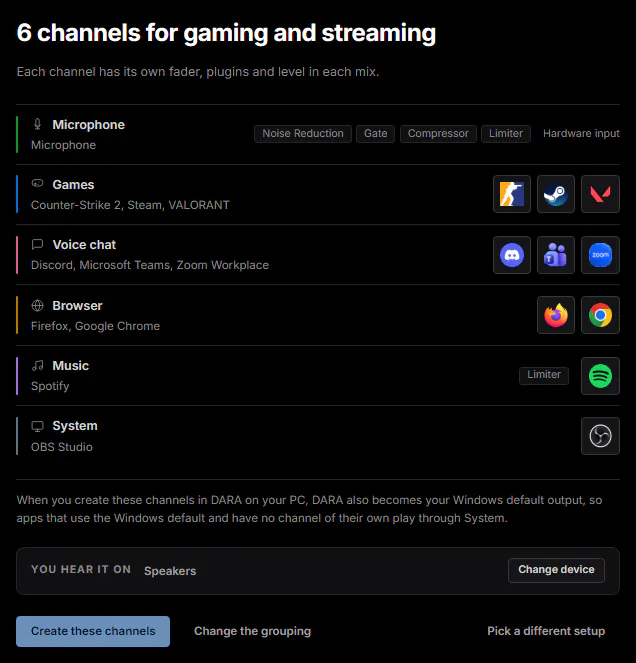
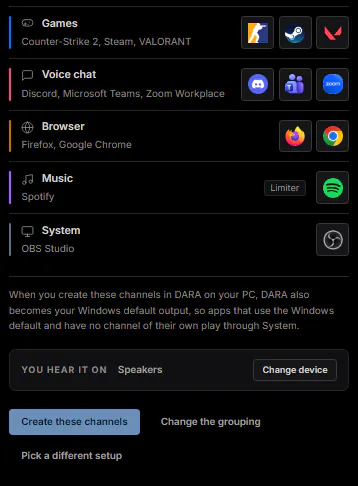
- Check the channels. DARA shows each channel and the apps it found for it. Choose Change the grouping to move an app, or Create these channels when it looks right.


- Check who hears what. If your setup has a second mix, like Stream, DARA shows which channels go into it. Choose Looks right to carry on.
- Point your other apps at DARA. DARA lists the apps that keep their own device setting and shows where to change it. Point apps at DARA has the same steps.
To start over, open Settings and choose Redo… next to First-time setup. This replaces every channel and mix you have now, so DARA asks you to confirm first.
Channels
A channel is one strip in the mixer. It has a color bar and a name at the top, then the apps on it, its effects and its sends. You can have up to ten channels.
Click the + after the last strip to add one. There are three kinds:
- Audio channel. One or more apps, like a game or Spotify.
- Input channel. Your mic, or another input on your audio interface.
- MIDI channel. The built-in synth or your instrument plugins, played from a MIDI keyboard.
Double-click a channel’s name to rename it, or press F2. Right-click the strip for the rest, like Edit color & icon…, Solo and Remove channel.

Add apps
Apps without a channel play in System until you add them to one.
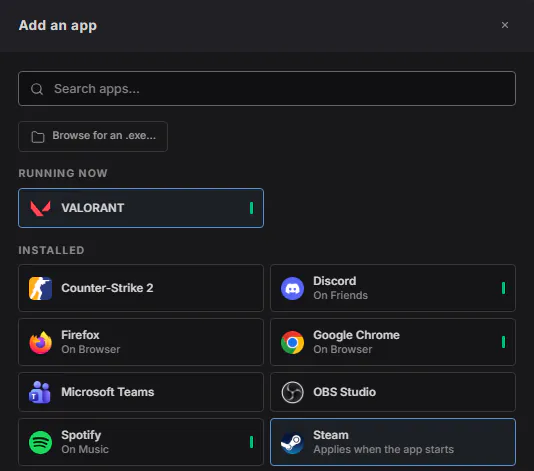
- Click the + tile under Apps on the channel. The Add an app window opens.
- Pick the app. Apps under Running now come first, then everything under Installed.
- Add an app that isn’t listed. Choose Browse for an .exe… and pick the app’s file. It shows up under Added by you.


To move an app to another channel, drag its tile onto that strip. An app that isn’t running yet moves as soon as it starts.
If an app doesn’t move, it keeps its own device setting. See Point apps at DARA.
Effects
Each channel has its own chain of effects.
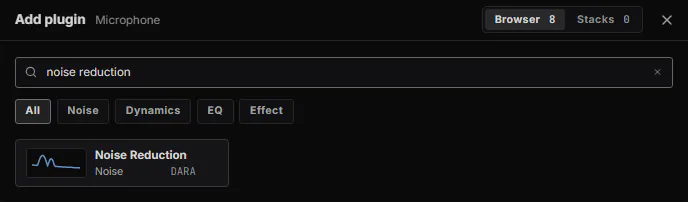
- Click Add plugin on the channel.
- Pick an effect. Choose a built-in one, or one of your VST3 or CLAP plugins.
- Set it up. Double-click its card, or click its gear, to open it. Drag cards up or down to change the order.

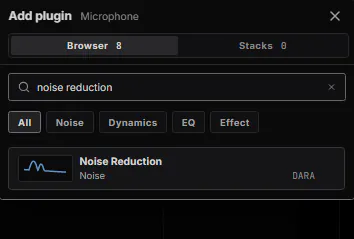

DARA has seven built-in effects:
| Effect | What it’s for | Preset to try |
|---|---|---|
| Noise Reduction | Takes background noise out of your mic. | Keyboard & mouse |
| Gate | Quiets your mic while you’re not talking. | Breaths & clicks |
| EQ-8 | Changes the tone of your voice. | Less boomy |
| Filter | Cuts rumble, hiss or the low hum that electrical power can add to a recording. | Cut rumble |
| Compressor | Brings loud and quiet words closer together. | Even out my voice |
| Limiter | Stops sudden peaks from getting too loud. | Safety catch |
| De-Esser | Softens sharp S and Z sounds. | Harsh S sounds |
Every built-in effect opens in Simple. Pick a starting point, then how strong, from Off to Max. Advanced has every control.
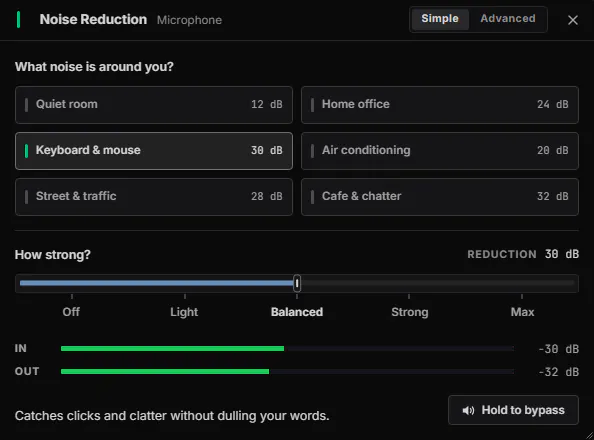

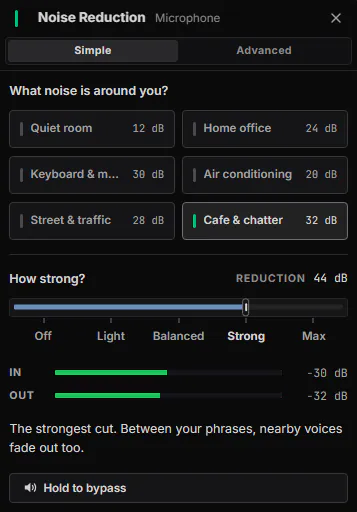

Effects that listen ahead, like Noise Reduction, add a little delay. DARA shows it on the channel and delays the other channels to match.
To reuse a chain on another channel, choose Save plugins as stack… from the strip’s right-click menu. It shows up under Stacks when you click Add plugin.
If a plugin crashes while DARA scans it, DARA blocks it so it can’t take your audio down.
Mixes and sends
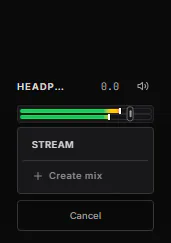
You can have up to ten mixes. A send sets how much of a channel goes into one mix.
- Click Add send at the bottom of a channel.
- Pick the mix. Choose one you already have, or Create mix.
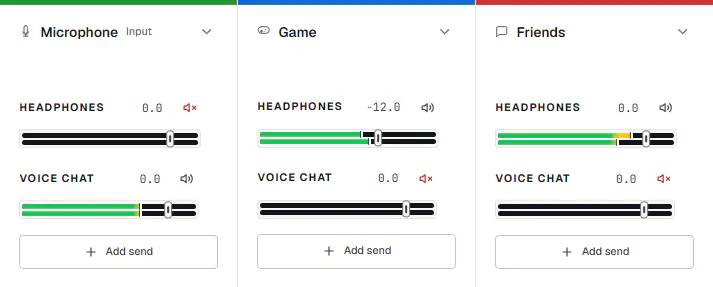
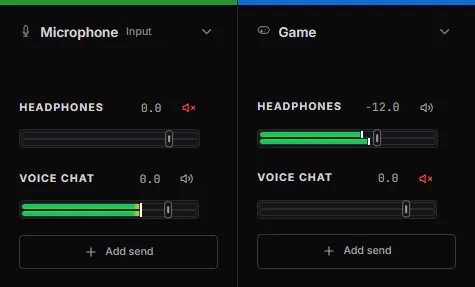
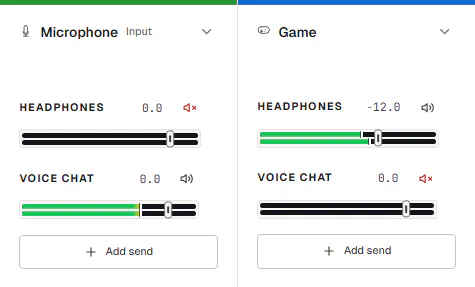
- Set the level with the send’s fader.
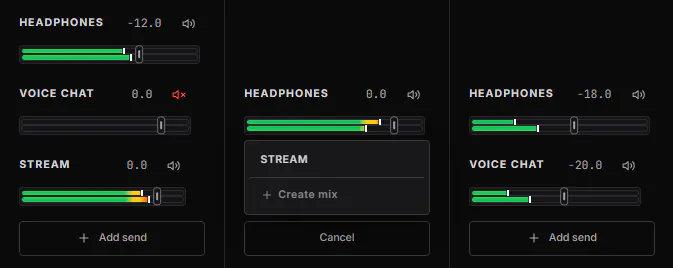


Set a level
- Drag the send’s fader.
- Double-click it to go back to 0 dB.
- Click the number to type a value. Type
-inffor silence. - Click the speaker icon to mute that send. The channel keeps playing in your other mixes.

If you remove the last send to a mix, the mix goes too, along with its recording device in Windows. DARA asks first, and Ctrl+Z brings it back.
Master and outputs
The master section on the right has one fader for each mix.
- Pick the mix you hear. Click the headphones button on that mix.
- Pick where you hear it. Choose your headphones or speakers under Output.
To play a mix on a second device, right-click its master fader and choose Output device. Then pick the device.
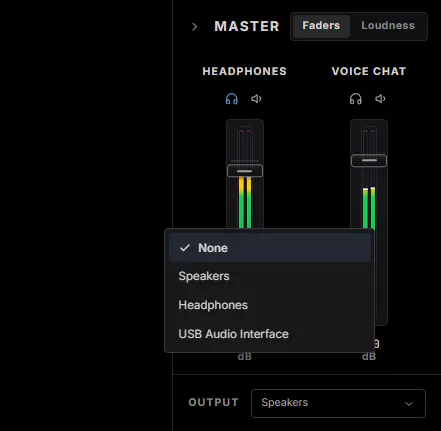

Switch to Loudness to see how loud each mix is in LUFS, with its true peak and loudness range. Pick a target like Spotify, YouTube or EBU R128, and DARA shows how far off the mix is.
Scenes
A scene saves your whole setup under one name. It keeps your channels and their apps, effects, sends, mixes and master levels.
- Click Scenes in the title bar.
- Save one. Choose Save mixer as scene.
- Load one. Click a scene to switch to it.
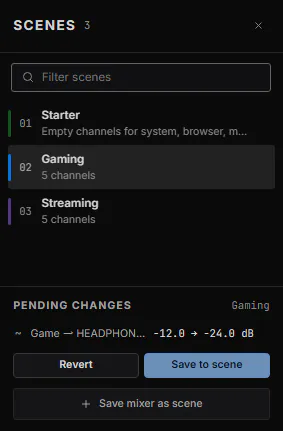

After you change something, Pending changes lists what’s different from the scene. Choose Revert to go back, or Save to scene to keep it.
DARA asks before a scene replaces unsaved changes. If you load the wrong scene, press Ctrl+Z.
Hotkeys and MIDI
Global hotkeys work anywhere in Windows, even in a game. These are the defaults:
| Ctrl+Shift+M | Mute microphone |
| F24 | Push-to-talk |
| Ctrl+Alt+D | Show or hide DARA |
| Ctrl+Alt+Q | Lower all mixes |
Lower all mixes turns every mix down at once. Press it again to bring them back up.
Push-to-talk starts on F24, a key most keyboards don’t have, so set your own.
Change a hotkey
- Open Settings and go to Windows integration.
- Click the hotkey under Global hotkeys.
- Press the new keys. Esc cancels.
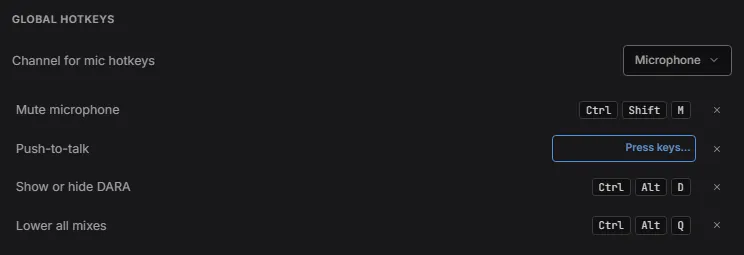

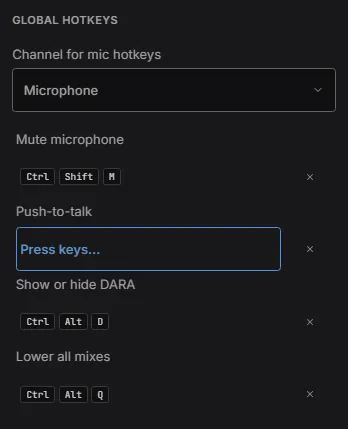

Mute microphone and Push-to-talk work on the channel you pick under Channel for mic hotkeys.
Windows gives each key combination to one app at a time. If another app already uses one, DARA won’t get it, so pick a different one.
Use a MIDI controller
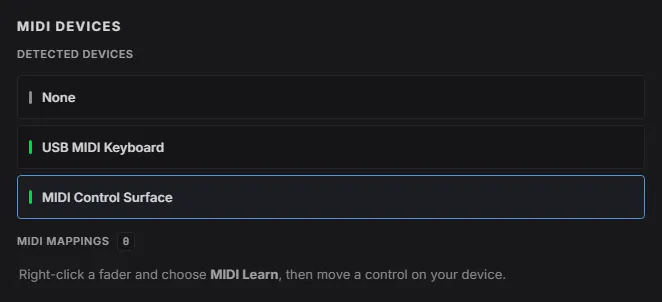
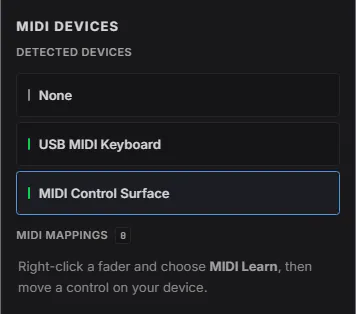
- Pick your controller in Settings, under MIDI devices.


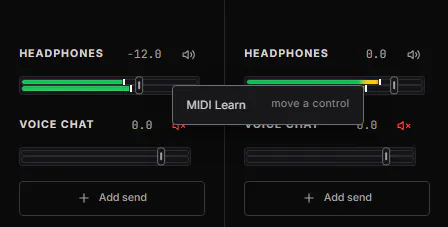
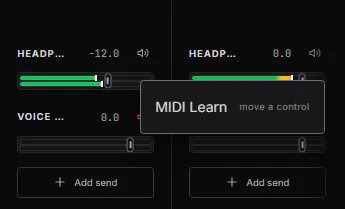
- Right-click a fader and choose MIDI Learn.


- Move a knob or fader on your controller.
To undo it, right-click the fader and choose Remove MIDI mapping.
Point apps at DARA
Most apps play through the Windows default device, and DARA is that device now. Some apps, like Discord, OBS and Zoom, keep their own device setting, so you set them once.
Each mix shows up in Windows as a recording device named after the mix. Point each app at the mix you made for it.
| App | Where | What to set |
|---|---|---|
| Discord | Settings, Voice & Video | Output to System, and the input to your mix |
| OBS | Sources, Add, Audio Input Capture | Device to your mix |
| Zoom | Settings, Audio | Speaker to System, and the microphone to your mix |
| Audacity, REAPER or another recorder | Audio settings, recording device | Your mix |
Settings
Click the gear in the title bar to open Settings. It has these parts:
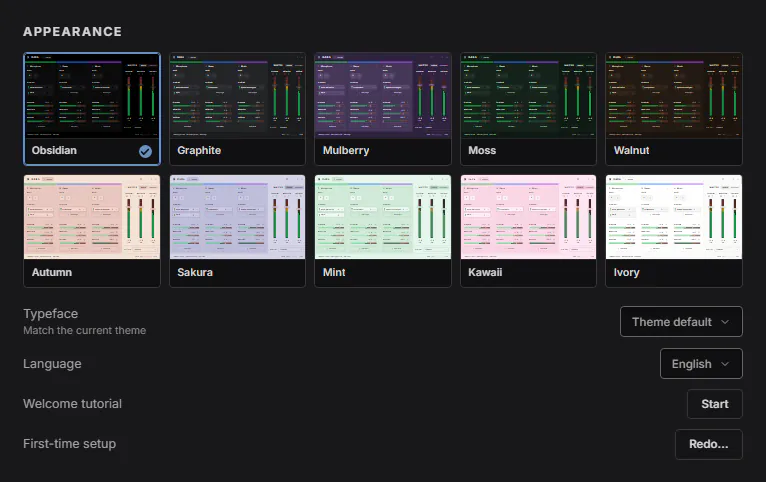
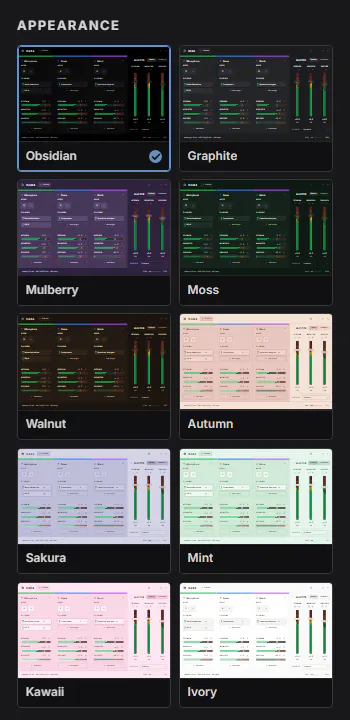
- Appearance. Ten themes, ten typefaces plus your system font, and ten languages. Welcome tutorial and First-time setup are here too.
- Windows integration. Start DARA with Windows, keep it in the system tray, and change the global hotkeys.
- Audio engine. Set the output buffer, from the device default down to 3 ms. Adapt when the PC is busy raises it for a moment when your PC can’t keep up.
- Inputs and outputs. Pick the device DARA plays on. Under Windows default devices, DARA can keep one channel as the Windows default output and one mix as the default recording device.
- Plugins. Choose Rescan after you install new VST3 or CLAP plugins.
- Backup. Export… saves your setup to one file, and Import… loads it back.
- MIDI devices. Pick your MIDI controller and see what it’s mapped to.
- Keyboard shortcuts. Click a shortcut, then press the new keys. Reset all puts every shortcut back to its default.
- License. Activate DARA, or deactivate it on this PC.
- Privacy & updates. Choose what diagnostic data DARA may send.


Keyboard
With a fader selected:
| Left arrow or Right arrow | Move 0.5 dB |
| Shift + Left arrow or Right arrow | Move 3 dB |
| Home | Back to 0 dB |
| Left arrow below -60 dB | Silence |
| Double-click | Back to 0 dB |
| Click the number | Type a value. Type -inf for silence. |
| Right-click | MIDI Learn |
Anywhere in DARA:
| Ctrl+Z | Undo |
| Ctrl+Y | Redo |
Press ? in DARA to see every shortcut. To change one, open Settings and go to Keyboard shortcuts.
Your license
One license can be active on two PCs.
The first time DARA opens, it asks for your key. Paste it and choose Activate DARA. To check or change your key later, open Settings, then License.
To use DARA on another PC, install it there and activate it with your key. If your license is already on two PCs, DARA asks which one to move it from. The license agreement says how often you can move it.
Your key is in your purchase email. The confirmation page also shows it for 24 hours.
If you lose it, you can request a replacement key on the key recovery page, or email support@daraaudio.com from the address you paid with and include your order number. Keep your key private. If we need it, send only the last four characters.
For anything else, see the support page.